7 SignalFlow: Browse Tab
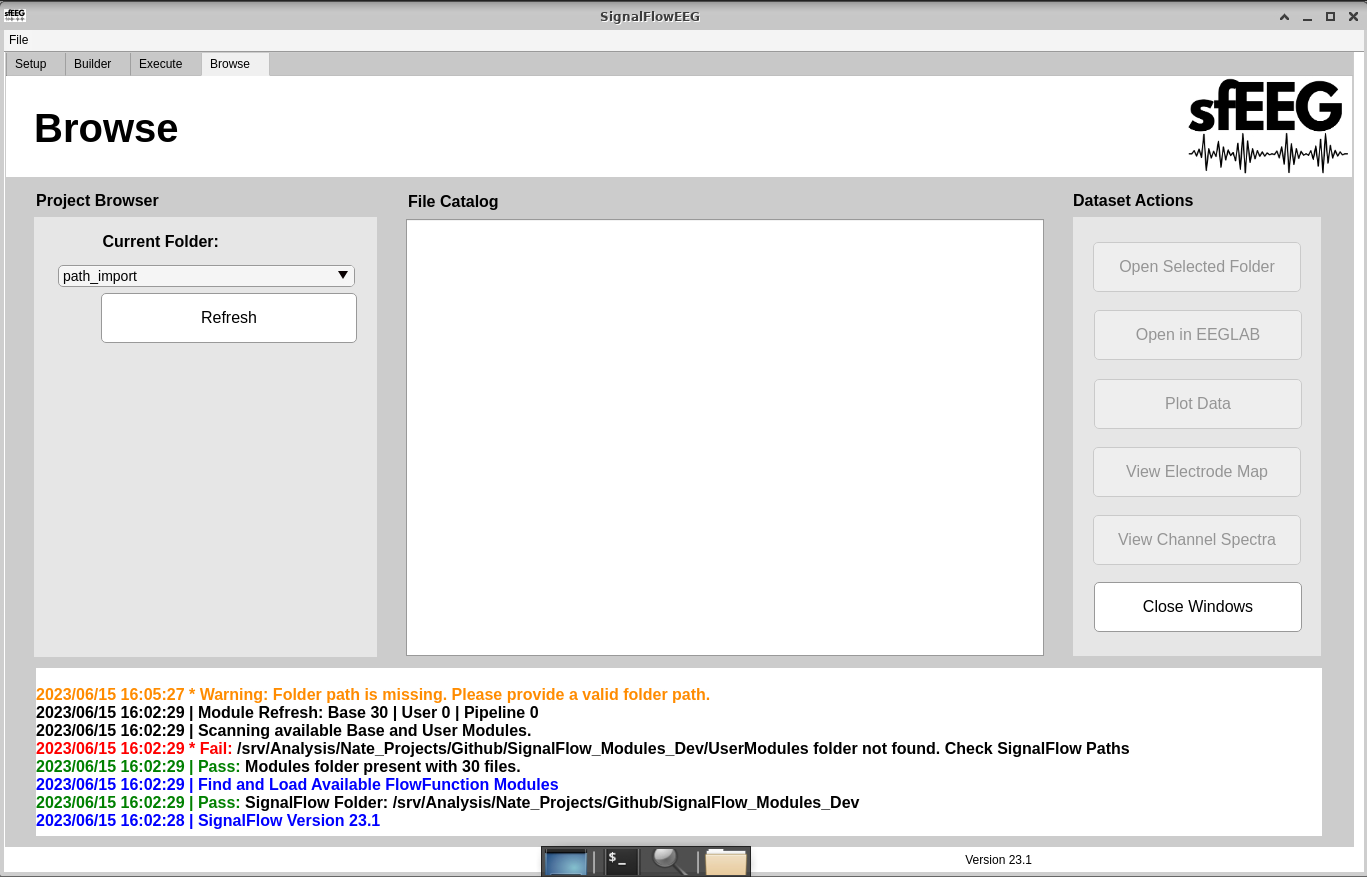 * The browse tab is used to analyze and look at data. The user has access to many tools to aid with this.
7.1 Select Project Folder
- Navigate to the “Browse” Tab.
- Left-click the current folder dropdown.
- Select the folder you would like to see.
- The file catalog will be updated based on your selection.
7.2 Refresh
- This button is used to refresh the file catalog when a change to the file sytem or pipeline has occured.
- An example of this would be adding a file to the import directory. The user must click the “Refresh” button in order to see it in the File Catalog.
7.3 Open Selected Folder
- This button is used to open the selected directory in the computers file explorer.
- To use this button:
- Left-click your desired directory in the File Catalog.
- Left-click the “Open Export Folder” button.
7.4 Open in EEGLAB
- This button is used to open a selected eeg file in the EEGLAB gui.
- To use this button:
- Left-click your desired file in the File Catalog.
- Left-click the “Open in EEGLAB” button.
7.5 Plot Data
- This button is used to plot data for a selected eeg file.
- To use this button:
- Left-click your desired file in the File Catalog.
- Left-click the “Plot Data” button.
7.6 View Electrode Map
- This button is used to view the electrode map for a selected eeg file.
- To use this button:
- Left-click your desired file in the File Catalog.
- Left-click the “View Electrode Map” button.
7.7 View Channel Spectra
- This button is used to view the channel spectra for a selected eeg file.
- To use this button:
- Left-click your desired file in the File Catalog.
- Left-click the “View Channel Spectra” button.
7.8 Close Windows
- This button is used to close all matlab figures/windows. Matlab and the SignalFlowEEG GUi will not be closed.