5 SignalFlow: Builder Tab
The Builder Tab is where you can build your pipeline. You can add, delete, reorder, and edit modules. You can also filter modules to make it easier to find the module you are looking for.
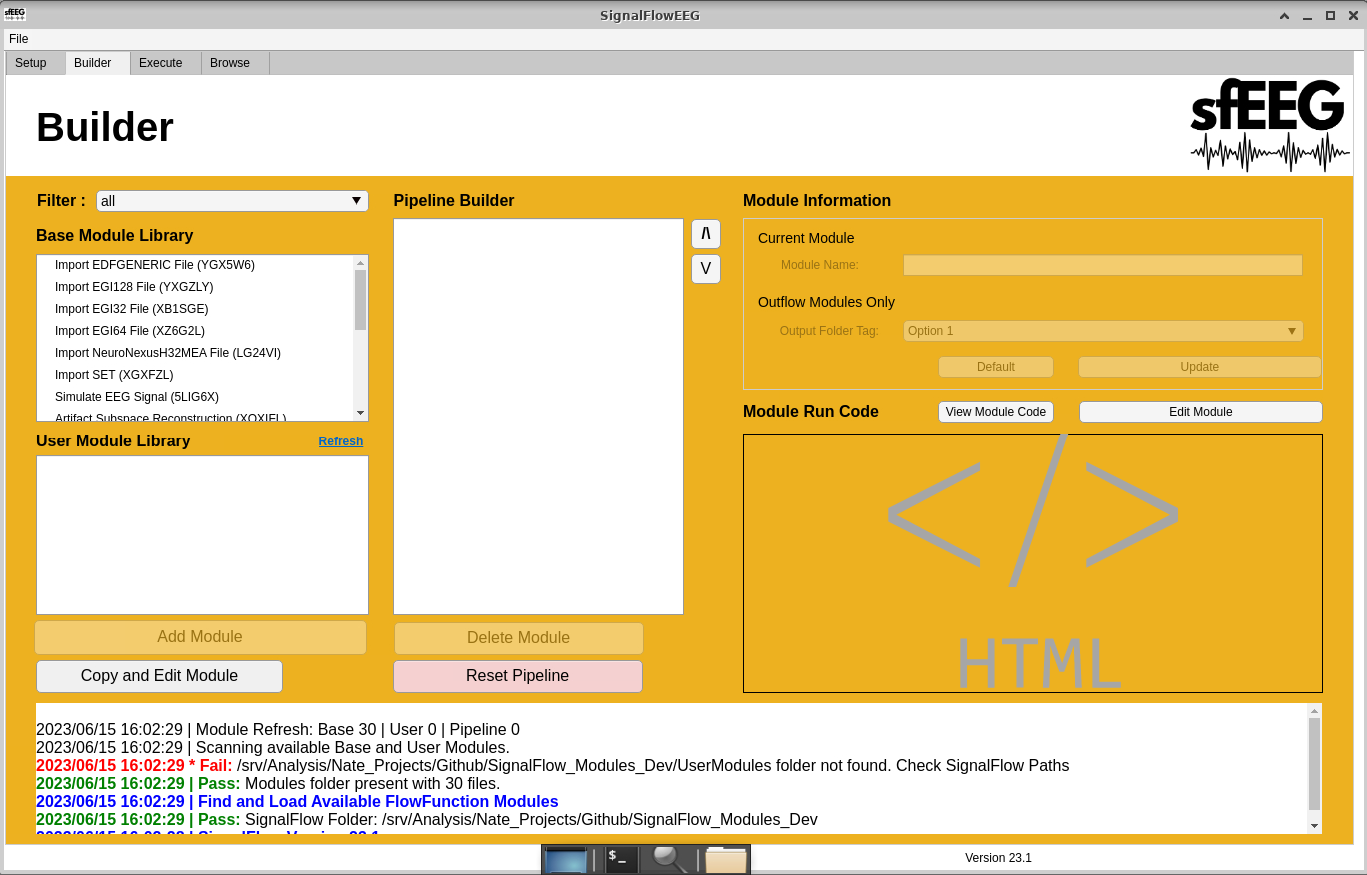
5.1 Filter Modules
- Navigate to the “Builder” Tab.
- Left-click the filter dropdown.
- Select the filter you would like to use.
- Module Libraries will only show modules that agree with your filter.
5.2 Adding Modules
- Navigate to the “Builder” Tab.
- Left-click the module you would like to use.
- This can be from the both the Base and User module libraries.
- Below the Base and User module libraries, there is an “Add Module” button, left-click it.
- The module will the be added to the pipeline. It will show up in the Pipeline Builder.
5.3 Copy and Edit Module TODO this might have a bug
- Navigate to the “Builder” Tab.
- Left-click the module you would like to use.
- This can be from the both the Base and User module libraries.
- Below the Base and User module libraries, there is an “Add Module” button, left-click it.
- The module will then be opened in Matlab.
- Edit any parameters or code.
- Save the Module file.
- The Module file should show up in the User module library.
5.4 Delete Module
- Navigate to the “Builder” Tab.
- Left-click the module you would like to delete.
- This can only be from the Pipeline Builder
- Below the Pipeline Builder, there is an “Delete Module” button, left-click it.
- The Module will be removed from the pipeline.
5.5 Reorder Modules
- Navigate to the “Builder” Tab.
- Left-click the module you would like to reorder.
- This can only be from the Pipeline Builder.
- To the right of the Pipeline Builder, there are 2 arrows.
- Left-click the arrow that corresponds with the direction you would like to move the module.
- The Module will be reordered in the pipeline.
5.6 Reset Pipeline
- Navigate to the “Builder” Tab.
- Left-click the “Reset Pipeline” button.
- All Modules within the Pipeline Builder will be deleted.
5.7 Change Module Information
- Navigate to the “Builder” Tab.
- Enter the new Module Name.
- If the module is an outflow module. A. Select the needed output folder tag in the dropdown.
- Left-click the “Update” button.
- Your changes will be saved.
- If you would like to return to default name and folder tag A. Left-click the “Default” button.